How to Create a Free WhatsApp QR Code Online
A free WhatsApp QR code lets someone start a chat with your phone number by scanning it. You can also include a ready-made message, making it useful for customer support, product enquiries, appointment requests, event registrations, and small-business marketing.
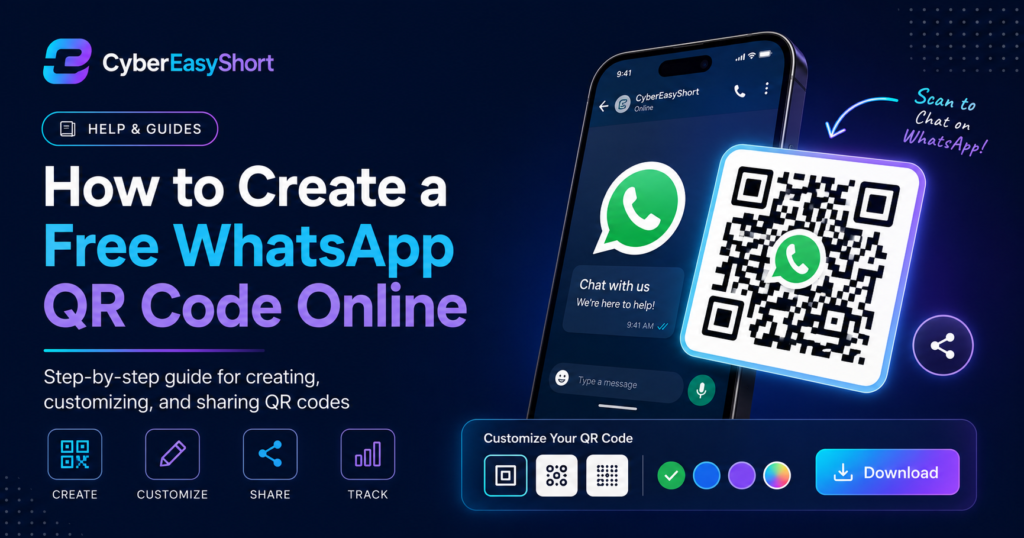
CyberEasyShort can create a WhatsApp QR code locally in your browser. You can choose the WhatsApp content type, enter a phone number, add an optional message, customize the appearance, and download the finished code without using a separate QR-image service.
What Is a WhatsApp QR Code?
A free WhatsApp QR code normally stores a wa.me link containing your phone number and an optional prepared message.
A WhatsApp QR code normally stores a wa.me link. When a compatible phone scans the code, WhatsApp opens a chat with the selected number. If a pre-filled message is included, that text appears in the message box so the visitor can review it before sending.
The QR code does not send a message automatically. The person scanning it still decides whether to open WhatsApp and send the prepared message.
What You Need Before You Start
- A WhatsApp account connected to the phone number
- The complete international phone number
- An optional welcome or enquiry message
- A phone camera or QR-scanning app for testing
Use the country code and phone number without a plus sign, spaces, brackets, or dashes. For a Bangladesh number, for example, enter 8801XXXXXXXXX rather than starting with the local zero.
How to Create a Free WhatsApp QR Code
Step 1: Open the CyberEasyShort QR Generator
Open the free CyberEasyShort QR Code Generator. Keep the Static QR tab selected for a direct WhatsApp chat code.
Step 2: Select WhatsApp
Open the QR content-type menu and choose WhatsApp. The form will display the fields needed for a WhatsApp chat link, and the preview will use a WhatsApp-style default appearance.
Step 3: Enter the Phone Number
Enter the international phone number connected to WhatsApp. Remove the plus sign and formatting characters. Check every digit carefully because the QR code will open the exact number you enter.
Step 4: Add an Optional Message
Add a short message that helps the visitor begin the conversation. Keep it useful and specific. Examples include:
- Hello, I would like to know more about this product.
- Hello, I want to book an appointment.
- Hello, please send me the current price list.
- Hello, I scanned your QR code and need support.
Avoid placing passwords, payment details, identity-document numbers, or other sensitive information inside the prepared message.
Step 5: Customize the QR Code
You may change the foreground color, background color, image size, and margin. The default WhatsApp-style color is a practical choice, but strong contrast is more important than matching a brand color exactly. A dark foreground on a light background is usually easiest to scan.
If you use a centre logo, keep it small and test the final image carefully. A logo that covers too much of the pattern can make a QR code difficult or impossible to scan.
Step 6: Generate and Download
Generate the QR code and download the preferred format. PNG is convenient for social posts, documents, and everyday graphics. SVG is useful when a designer needs a scalable version for larger signs or print layouts.
Always Test Before Publishing or Printing
- Scan the code with an Android phone and an iPhone when possible.
- Confirm that WhatsApp opens the correct phone number.
- Check that the prepared message is readable and accurate.
- Test the code at approximately the same size it will be printed.
- Leave clear empty space around the code.
- Avoid glare, folds, low contrast, and busy backgrounds.
Do not print a large quantity until the final design has been tested from the expected scanning distance.
Where Can You Use a WhatsApp QR Code?
- Business cards and shop counters
- Product packaging and delivery inserts
- Restaurant menus and table displays
- Facebook and Instagram graphics
- Event posters and registration desks
- Invoices, quotations, and customer-support documents
- Service vehicles, banners, and storefront signs
Place a short instruction beside the code, such as “Scan to chat on WhatsApp,” so people understand what will happen before scanning.
Does a Static WhatsApp QR Code Expire?
A locally generated static QR image does not have a built-in expiry date. It continues to contain the same WhatsApp link. However, it may stop being useful if the phone number changes, the WhatsApp account is removed, or the prepared link is no longer correct. In that situation, create and distribute a new code.
Static WhatsApp QR Code vs Dynamic QR Code
A direct WhatsApp QR code is simple and works without a CyberEasyShort redirect. Its destination cannot be edited after the image is printed. A dynamic QR code contains a CyberEasyShort short link, which may allow the destination to be changed later. Use a dynamic code only when editable redirection is genuinely needed, and make sure the final destination remains safe and authorized.
Privacy and Safety Tips
- Use only a phone number you are authorized to publish.
- Do not disguise phishing, malware, deceptive forms, or unlawful destinations.
- Do not include private customer information in a shared QR payload.
- Check the displayed destination before entering sensitive information after scanning an unfamiliar code.
- Remove outdated printed codes when the associated number is no longer controlled by you.
Suspicious CyberEasyShort links or QR codes can be submitted through the Report Abuse page.
Frequently Asked Questions
Is the WhatsApp QR generator free?
The basic static WhatsApp QR tool can be used without a payment system. The QR image is generated locally in the browser.
Does scanning send the message automatically?
No. The prepared message opens in WhatsApp, and the user chooses whether to send it.
Can I change the phone number after printing?
Not in a direct static WhatsApp QR code. Create a new code when the number changes. A dynamic redirect is a different option and should be used carefully.
Should I use PNG or SVG?
PNG is suitable for most online uses. SVG is generally better when the code needs to be enlarged for high-quality print.
Create Your WhatsApp QR Code
Open the CyberEasyShort QR Code Generator, choose WhatsApp, enter the international number, add an optional message, and test the downloaded code before sharing it.